Installation Instructions
To install CactiStats into WHMCSv4, do the following:
- Download the CactiStats zip file from one of the two following locations:
- cactistats.rar
- cactistats.zip
- Upload the files onto your respective servers. Inside the zip files you will find two directories. One called ‘whmcs‘ and one called ‘cactiapi‘. These directiories need to be uploaded to their respective servers in their corresponding directories. Inside the whmcs directory, you will find a modules directory, this can be merged with the modules directory in your WHMCS installation. The cactiapi folder goes inside your cacti installation such that it can be accessed by going to http://your.cactiserver.com/path/to/cacti/cactiapi/api.php.
- Once those have been uploaded, enter the admin area of WHMCS and goto Addon Modules, then goto the CactiStats link
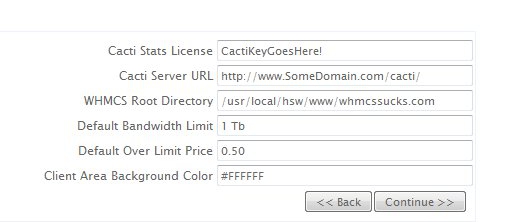
- You will then be taken to the End User License Agreement: Enter your Cacti Stats License Key and your Cacti Server URL. WHMCS is completed by default and you may edit the Default Bandwidth limit and Default Over Limit Price fields to suit your business needs.
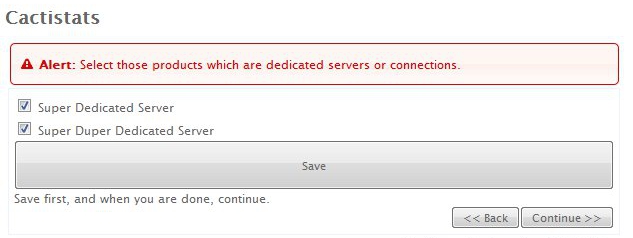
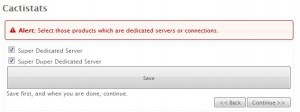
- Select your packages that are dedicated servers or connections. These will be specific to what you have setup in WHMCS.
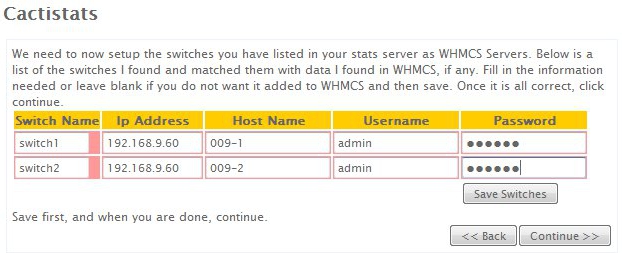
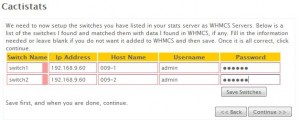
- Edit the Switch Name and Host Name fields if desired. This step can be completed after the install as well. Supply the Username and Password for your switch.
- This is the end of the install process. Setup the cron job as instructed, run the initial statistics script, and you’re ready to go!